1 Backend Login & Multi-Store Sales Channel Architecture
Shopware 6 Administration unifies and manages data across multiple restaurant branches (Sales Channels) and central commissaries.
-
Navigate to the Administration login URL
(
https://[your-domain]/admin). - Log in using your administrator credentials (admin).
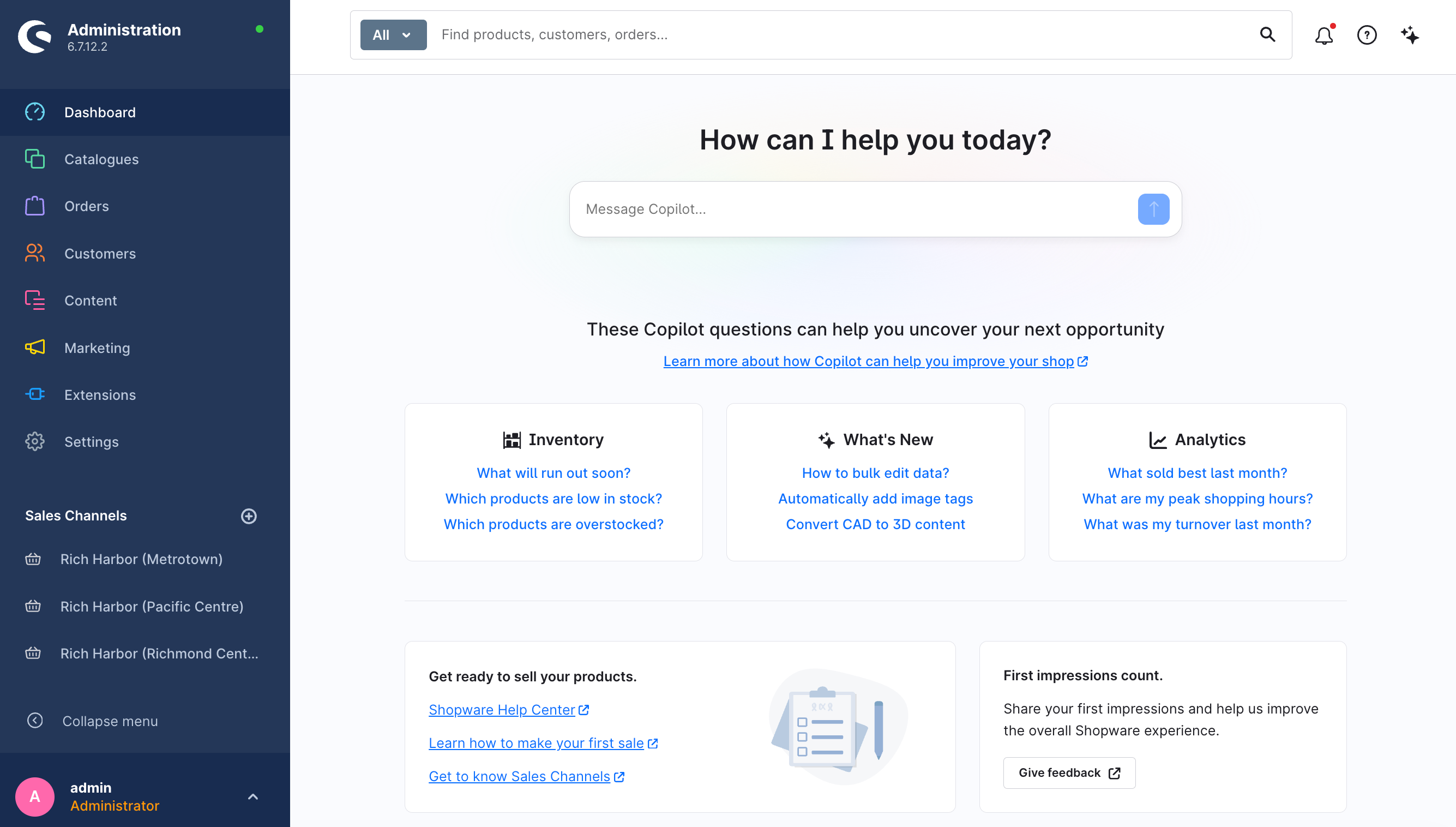
The left navigation drawer displays all configured physical restaurant sales channels:
- Rich Harbor (Pacific Centre)
- Rich Harbor (Metrotown)
- Rich Harbor (Richmond Centre)
2 Inocean ERP POS Core Plugin Configuration
Navigation: Extensions -> My Extensions -> Inocean ERP POS -> Click 【...】 -> Configuration.
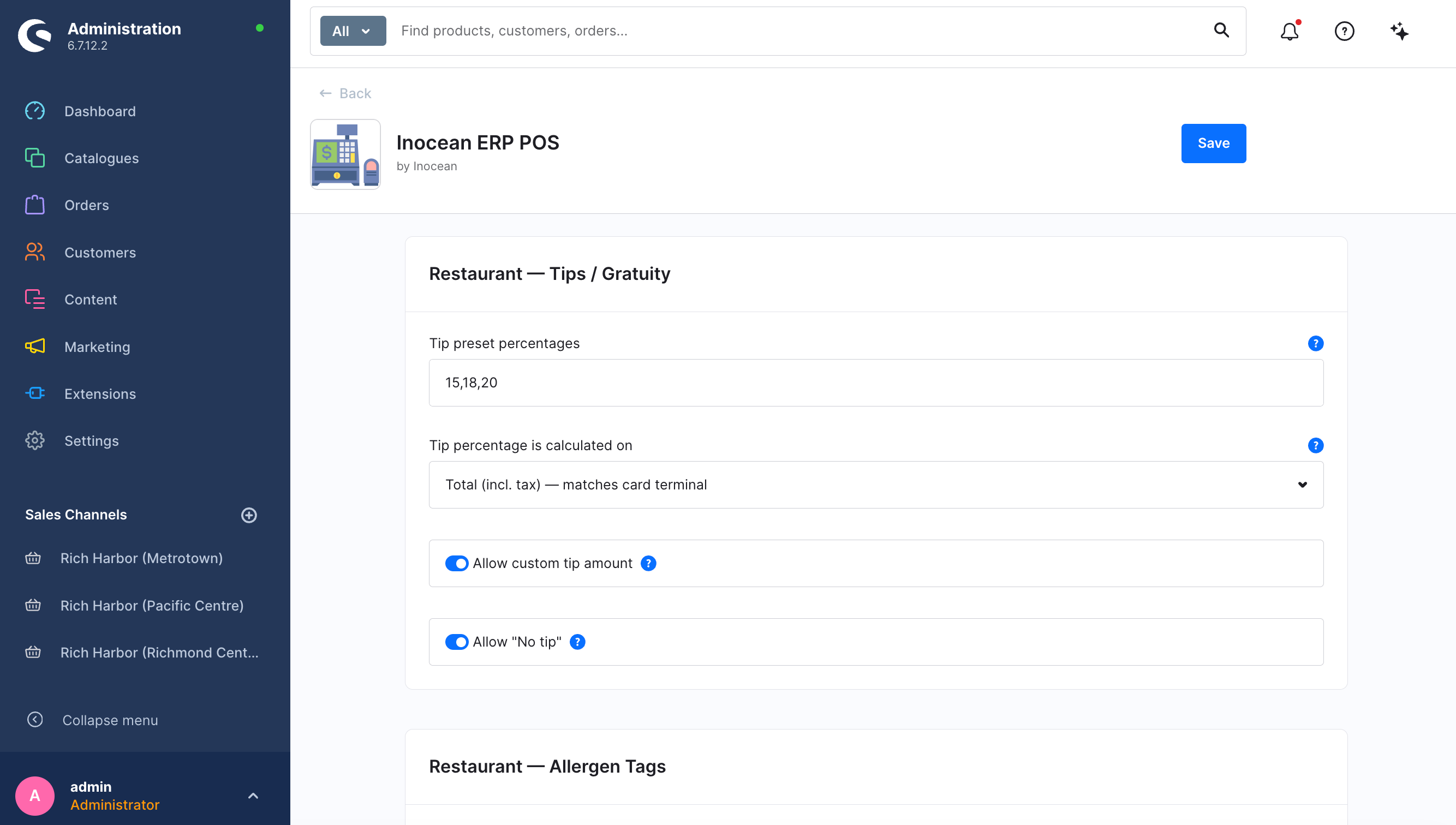
Key Configuration Parameter Reference
| Setting Name | Recommended Value | Operational Purpose & Impact |
|---|---|---|
| POS Business Type | Restaurant Chain (连锁餐饮) |
Industry Mode Switch: Enables table dining, kitchen KDS, queue, reservations, and tipping suites. |
| Tip preset percentages | 15,18,20 |
Preset tip percentage buttons displayed on POS checkout. |
| Tip percentage is calculated on | Total (incl. tax) |
Tip Calculation Base: Total including tax (matches North American card terminal convention) or Subtotal. |
| Allergen quick-pick tags |
Peanuts, Tree Nuts, Seafood, Shellfish, Eggs, Dairy, Gluten,
                  Soy, Sesame
|
Quick-pick allergen warning tags selectable during ordering. |
| Cash Drawer Owner | Per Register (每位收银员独立抽屉) |
Drawer Assignment: Independent shift reconciliations per cashier or shared store register. |
| Blind close | true (开启盲点钞) |
Hides expected cash amounts from cashiers during closing counts to prevent reconciliation tampering. |
| Variance reason threshold | 5.00 |
Maximum allowable cash over/short before mandatory explanation note is enforced. |
3 Dining Tables & Floor Zone Setup (POS Tables)
Navigation: POS / ERP -> Tables.
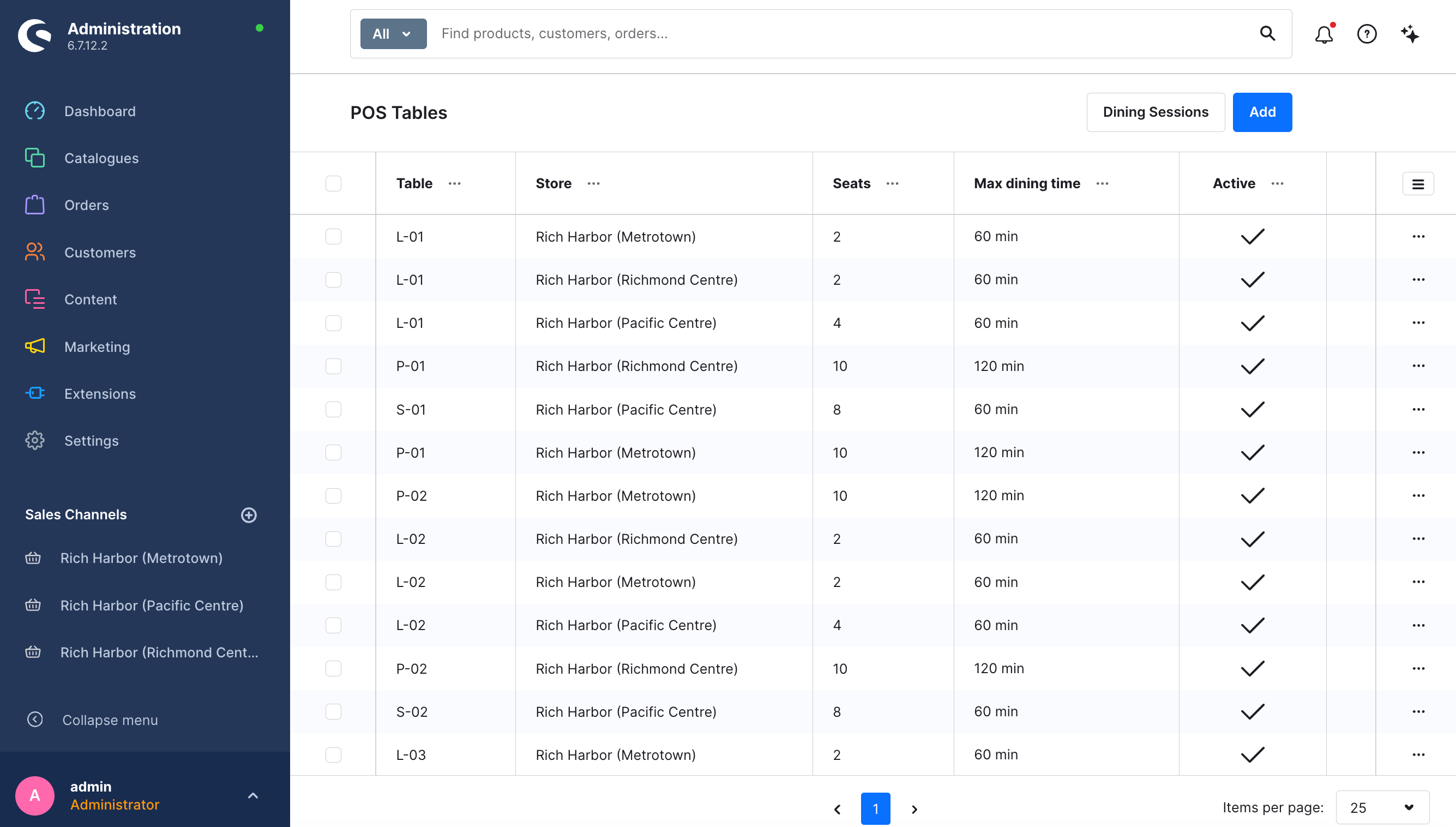
3.1 Maintaining Table Configurations
-
Table Number: Designated table code (e.g.,
L-01Lobby regular table,P-01Private VIP room,S-01Communal large table). - Store (Sales Channel): Associates the physical table with its specific store location.
- Seats: Standard seating capacity (e.g., 2, 4, 8, 12 guests). Queue and reservation engines use this to match parties.
- Max dining duration: Recommended dining duration (e.g., 60 mins / 120 mins).
- Dining Sessions: Click top button to audit all historical seating sessions, session IDs, start times, and settlement times.
4 Menu Catalog & BOM Recipe Assembly Engineering
Navigation: Catalogues -> Products.
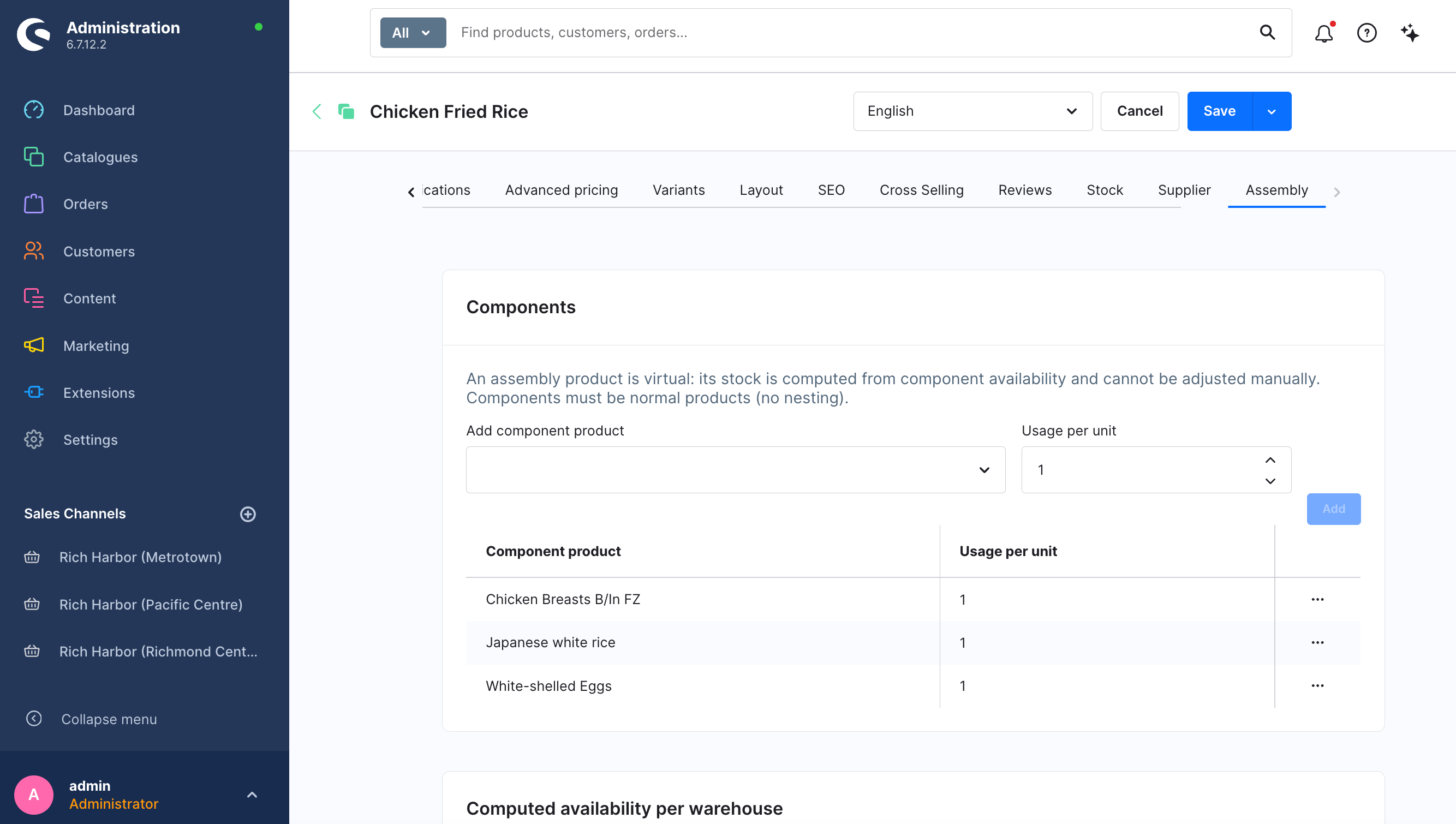
4.1 Menu Item Metadata & Variant Options
Configure multilingual dish titles, categories, applicable Canadian tax rates, and prices. Configure portion sizes and temperature variants under Variants.
4.2 Recipe Assembly Engineering (BOM / ERP Assembly)
In the product detail editor, switch to the 【ERP Assembly】 tab:
- Add Components: Map the dish to its raw ingredient SKUs (e.g., Signature Beef Noodle -> 0.20 kg Sliced Beef, 1 portion Fresh Ramen, 0.40 L Broth, 0.02 kg Scallions).
-
Automated Real-Time Ecosystem Effects:
- Dynamic Availability Calculation: POS calculates maximum portion capacity based on real-time ingredient stock in each store; items automatically display "Sold Out" if any critical component reaches 0.
- Instant Depletion on Settlement: Upon order settlement, component raw materials are deducted instantly from the store's warehouse.
- Automated Restocking on Refunds: Returned or cancelled orders restore ingredient inventory according to recipe ratios.
5 Multi-Warehouse Management & Stock Audit Ledger
Navigation: POS / ERP -> Warehouses.
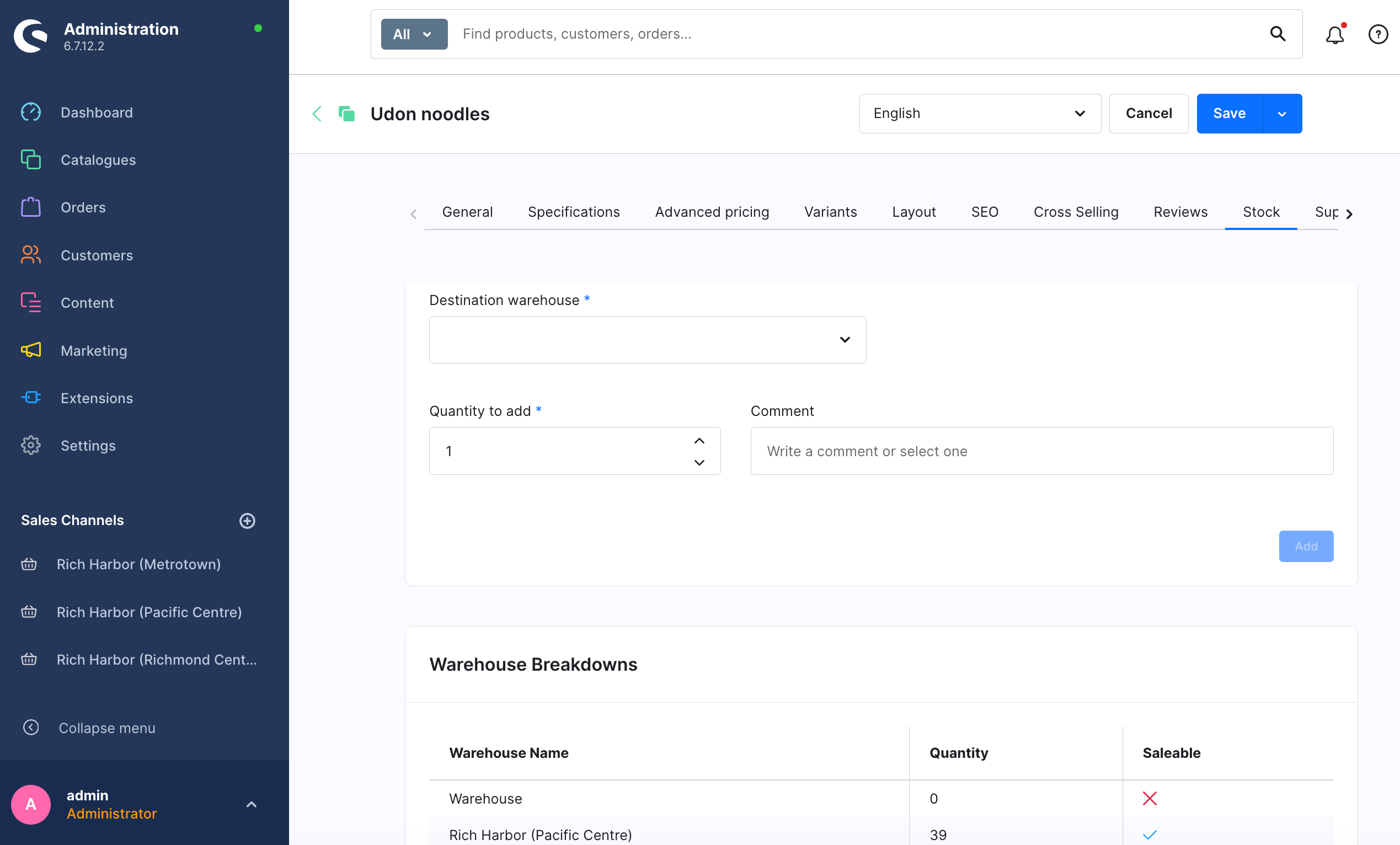
-
Warehouse Definitions: Create distinct physical
warehouse entities for each store location (e.g.,
Warehouse Pacific Centre) alongside central distribution centers (Central Commissary). - Stock Movements Audit Trail: Every inbound receipt, POS sales depletion, spoilage write-off, and physical count adjustment generates an immutable ledger record tracking Timestamp, Product, Quantity, Source Warehouse, Target Warehouse, Staff User (Created By), and Reason.
6 Supply Chain & Purchase Order Operations
Navigation: POS / ERP -> Suppliers & Supplier Orders.
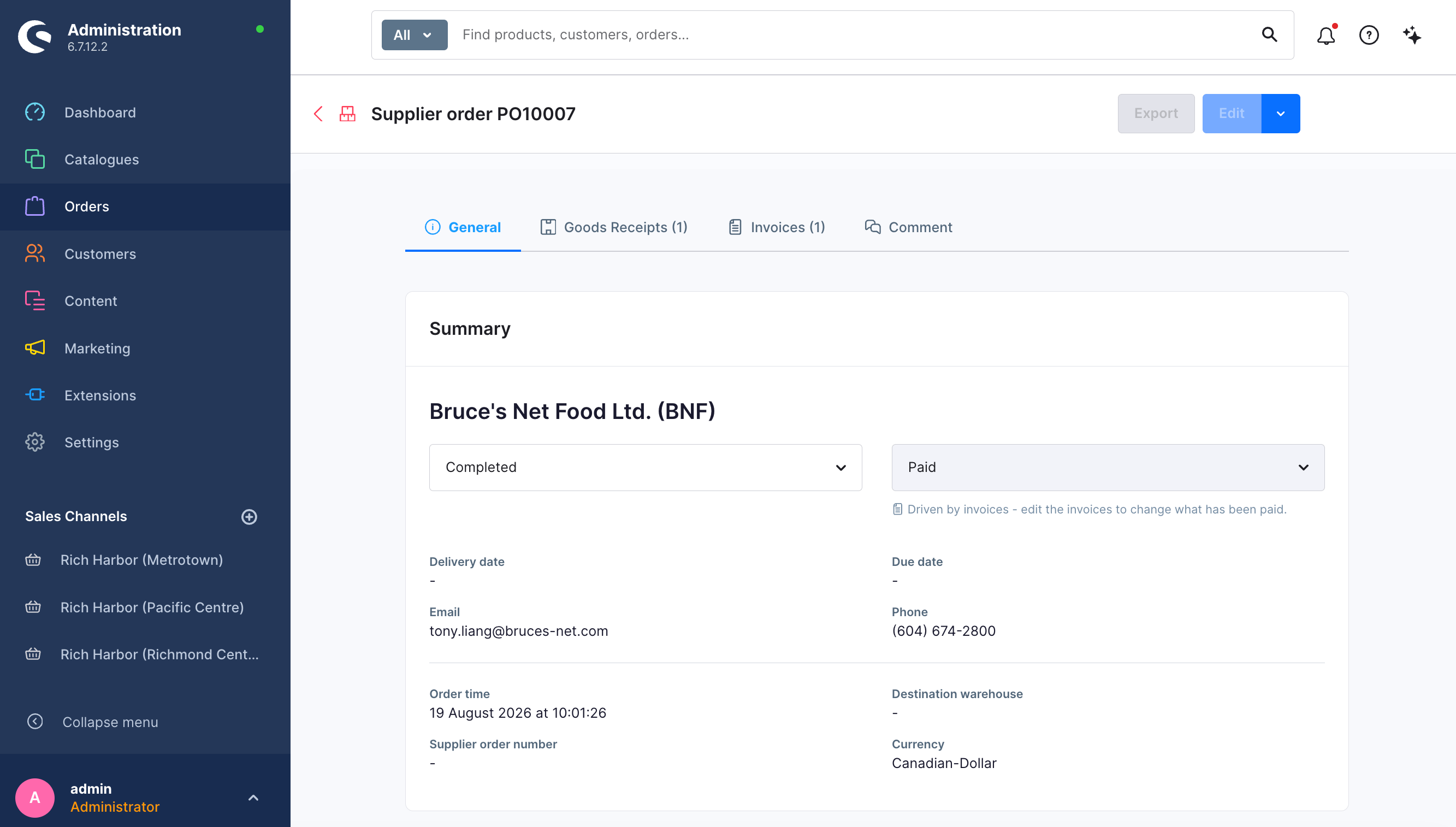
- Suppliers: Maintain vendor records, contact details, payment terms, and supply item catalogs.
- Purchase List: Automatic procurement suggestions based on recent consumption velocity and safety stock parameters.
- Supplier Orders: Create and track purchase orders with one-click PDF generation and email dispatch.
- Goods Receipts: Verify inbound deliveries at store or commissary loading docks, record discrepancies, and post inventory arrivals into stock.
7 Inventory Valuation & COGS Margin Reports
Navigation: POS / ERP -> COGS Report & Inventory Valuation.
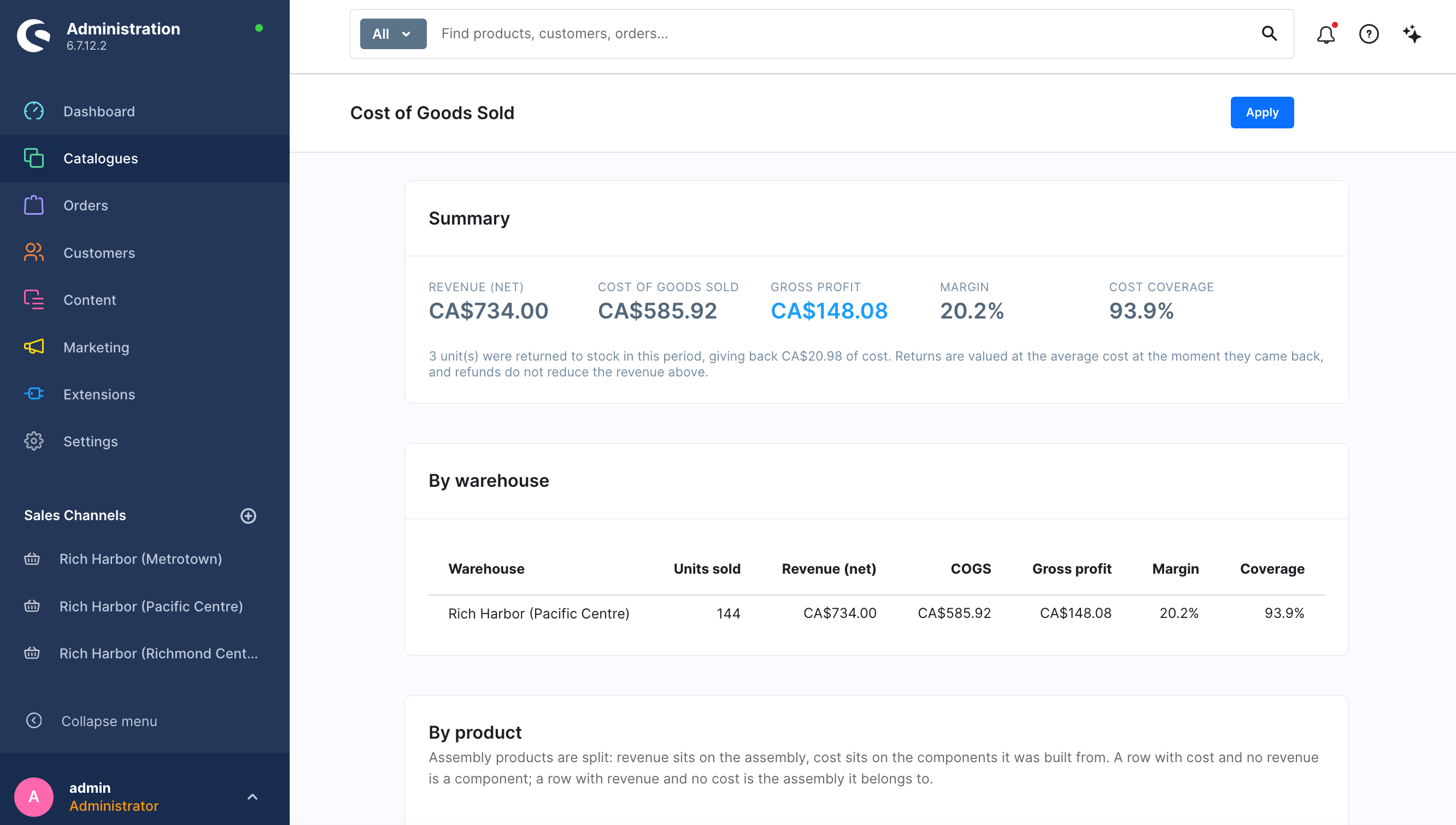
- Moving Weighted Average Costing: Every received shipment automatically recalculates the unit weighted average cost of stored raw ingredients.
- COGS Report: Detailed product-level breakdown of sales revenue, ingredient material cost, gross profit, and margin percentages over any custom date range.
- Inventory Valuation: Provides end-of-period total asset valuation across all store and commissary warehouses for financial reporting and tax audits.
8 Loyalty Program & Store Credit Wallet
Navigation: Customers -> Overview -> Select Customer -> Loyalty Tab.
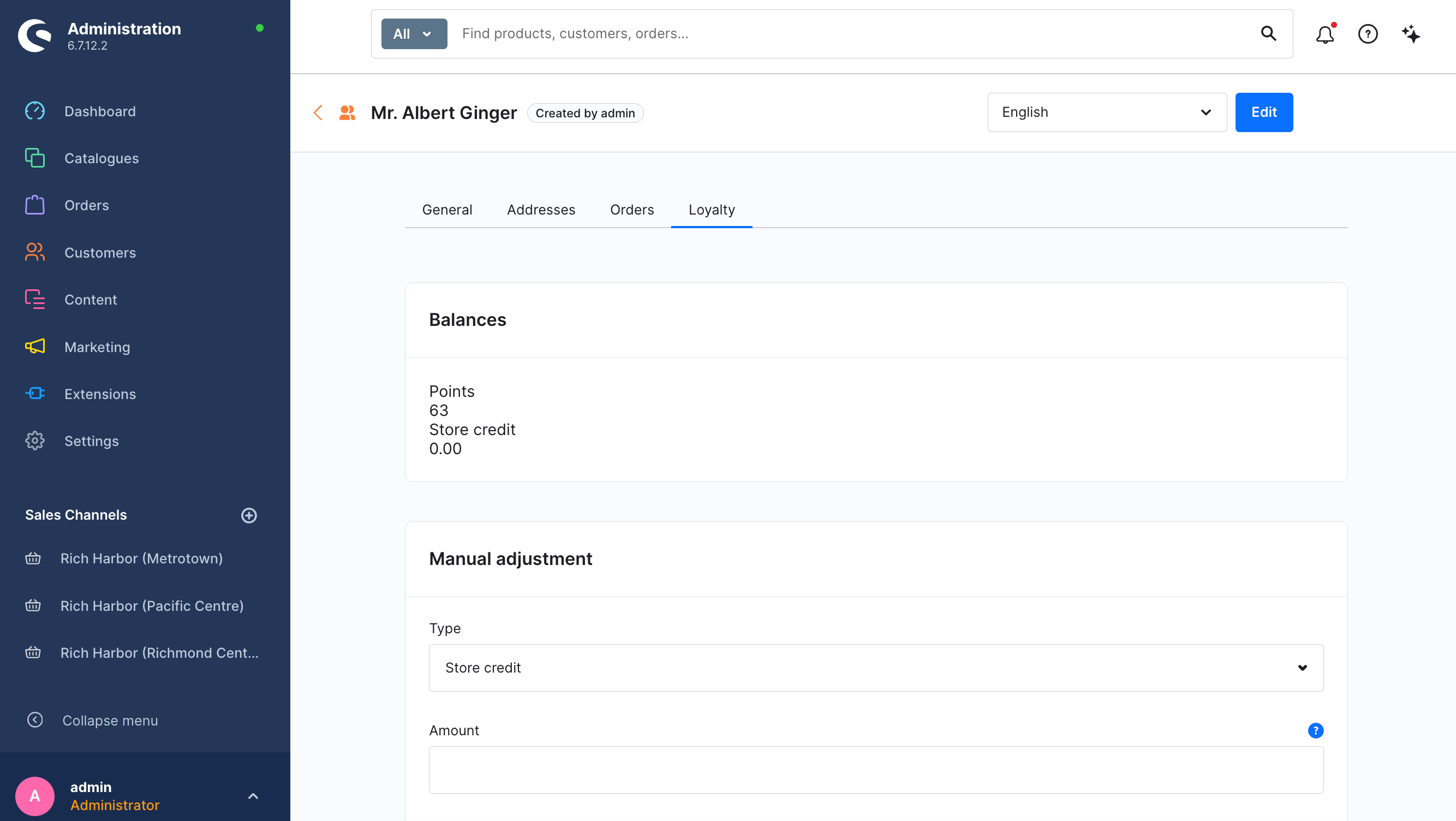
- Points & Store Credit Balances: Real-time overview of customer points, tier status, and available prepaid wallet credit.
- Transaction Ledger: Full audit history of earned points from orders, POS redemption deductions, and manual staff adjustments.
- Manual Adjustments: Authorize credits, promotional points, or refund compensations directly to the member's wallet.
9 Staff Accounts, Fast PINs & Role-Based Permissions (RBAC)
Navigation: Settings -> Users & Permissions.
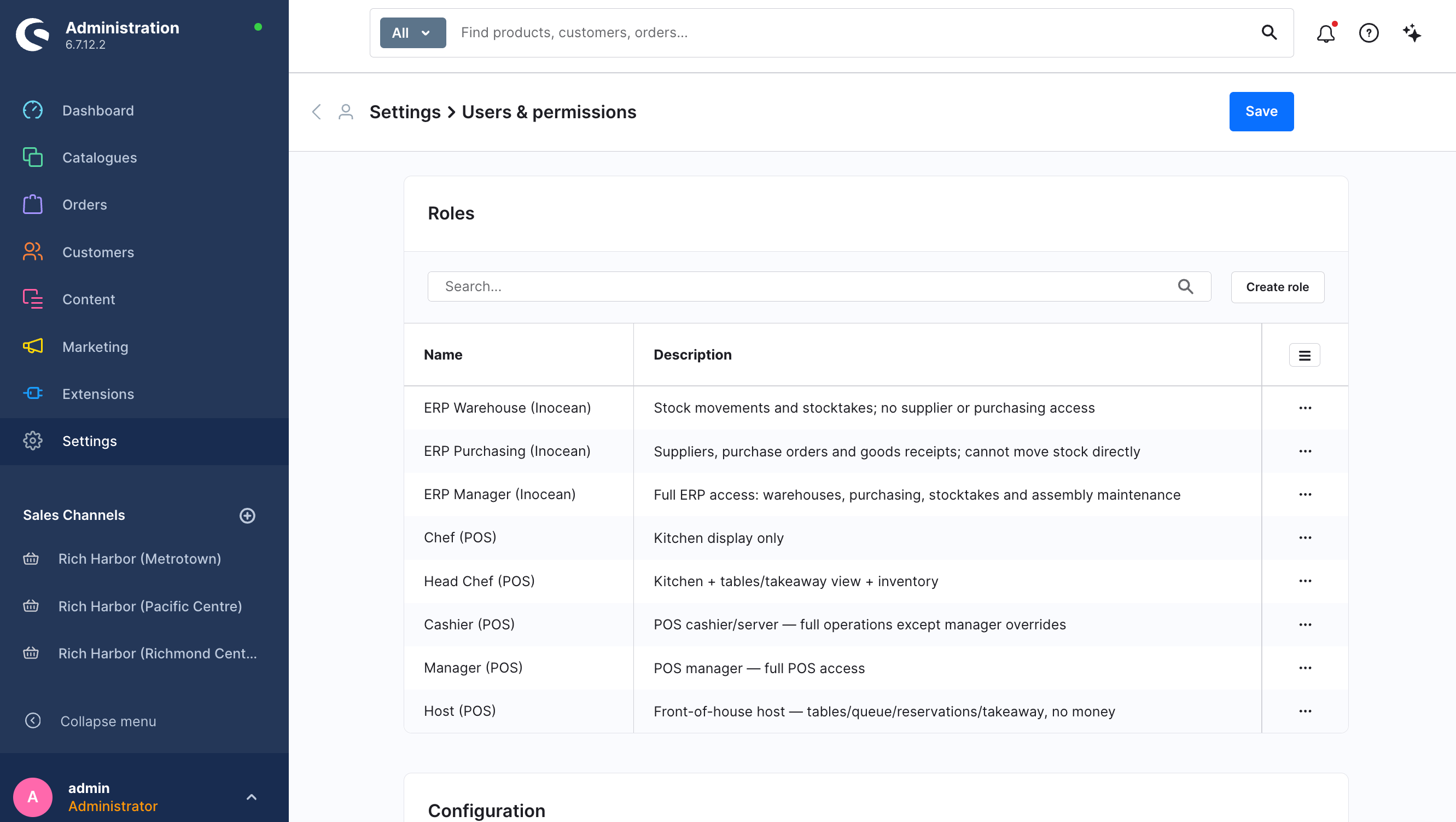
9.1 Staff Profiles & Touchscreen PIN Setup
Inside the user profile editor under the POS Cashier Card, assign a 4–6 digit PIN code for rapid terminal login and designate the staff member's default store location.
9.2 Fine-Grained POS Capability Matrix
| Permission Key (Capability) | Recommended Roles | Security Scope & Protective Function |
|---|---|---|
pos.cashier |
Cashiers / Floor Waiters | Allows standard table opening, ordering, sending to kitchen, and payment settlement. |
pos.refund |
Store Managers Only | Governs item and order refunds. Unauthorized staff have no refund UI buttons, and backend APIs reject attempts. |
pos.cash_manage |
Store Managers / Finance | Governs safe drops and mid-shift cash drawer withdrawals. |
pos.shift |
Cashiers / Store Managers | Allows opening shifts with float entry and conducting blind closing counts. |
pos.kitchen |
Chefs / Kitchen Runners | Grants access to the KDS kitchen board and preparation status toggles. |
pos.inventory |
Store Managers / Inventory Staff | Permits mobile receiving, store transfers, stocktaking, and allocations. |
pos.report |
Store Managers / Finance | Enables viewing sales summaries, gross margin analytics, and staff gratuity reports. |